Parent portal
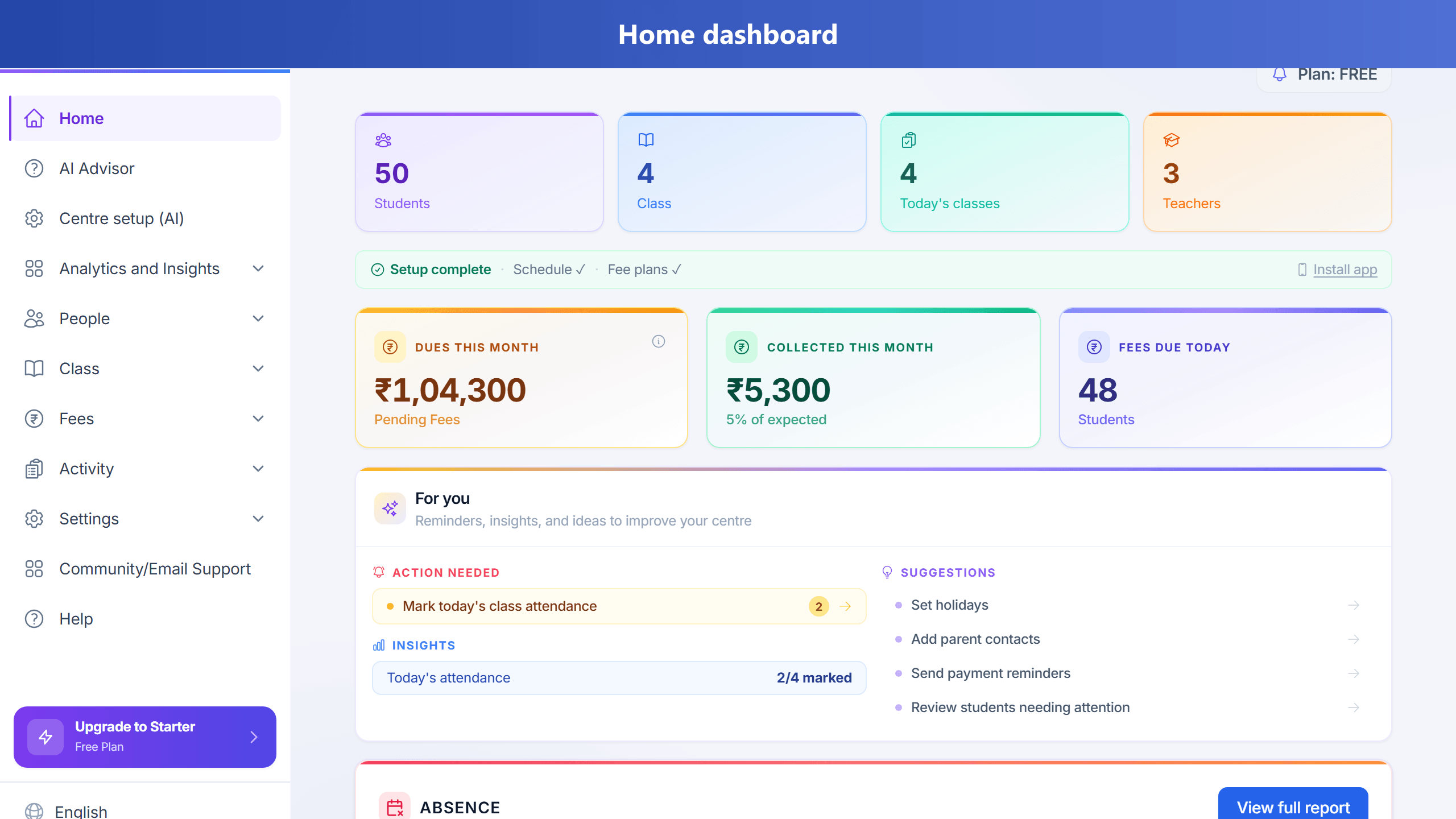
Centres enable the parent portal so families sign in and see attendance, fees, homework, and progress for their children only — without calling the owner every evening.
Some centres enable the parent portal so you can sign in and see your child’s attendance summary, fee status, and other read-only updates for your children only. Your centre must add you as a parent contact and turn on this feature for their plan.
First time and welcome email
When your centre adds you with an email on file, you should receive a message with a direct link to create your password or sign in. If you were admitted from Admissions (lead → student), TuitionDesk also creates a linked parent record from the enquiry phone/email so portal access is not a dead end. The link already knows which centre you belong to—you do not need to copy an Academy ID. The email still lists your sign-in email and may include an Academy ID only for support if a link fails. Use Activate parent access if you are setting a password for the first time, or Sign in on the main login page if you already have a password. This is not a signup for a new tuition account. If you forget your password, use Forgot password.
How to sign in
On Android, install the single TuitionDesk app from the Play Store (see help article Android mobile app). Parents use the same app and the same login as owners and teachers.
- Open the link from your centre’s email when possible. Sign in at
/login/(legacy/parent-portal/login/and/parent/login/redirect there). If the same email is also an owner, teacher, or branch admin—even at another centre—Google, passkey, or staff password login lists all those roles including Parent on Continue as. After sign-in, use Accounts / Switch account to move between roles without logging out again. - First time: open Activate parent access and use Find my centre with the email your centre saved, or use the org link from your welcome email.
- Only if needed, enter your Academy ID manually (your centre can share it for support).
- Use the same email the centre saved for you as parent, and your password.
What you can see
You only see students linked to your parent profile in that academy. You cannot see other families’ data, branch-wide totals, or send fee reminders — those actions stay with staff.
When your centre schedules a Parent-Teacher Meeting, it appears on the child’s Plan tab. You can RSVP Yes / Maybe / No. From Overview, Request PTM opens Plan and scrolls to the request form (preferred date or a short reason is required). The request form stays available even if the centre has not published a teaching plan yet. Staff see requests on Activity → Parent-Teacher Meetings and schedule a slot. Centres schedule PTMs from Activity → Parent-Teacher Meetings (see PTM help).
Links straight to one child
Your centre or an email may share a URL that opens a specific child (not only the parent home page).
Use the parent sign-in page first if needed; once signed in, that link should show that child’s tabs. If the address
looks like /parent-portal/child/… and you still see the wrong screen while signed in, contact your centre —
they may need to redeploy the app or adjust CDN routing so direct child links load the parent portal shell.
Each child: student hub
After you sign in, open a child from the list (if you have only one child, the app opens that child automatically). On phones, five primary destinations stay at the bottom: Home, Fees, Calendar, Progress, and More. Open More for Marks & assessments (online quizzes plus centre test marks for that child), Messages (chat with the teacher about that child), Advisor, notes, homework, documents, feedback, Plan, change password, centre/teacher login, and Sign out. Sign out is always available under More — including when you have only one child. From Overview you can tap Assessments to open Marks & assessments for that child. The portal home (Children list) still has a family-wide Quizzes tab that lists assessments across all linked children.
Tabs are read-only and scoped to that child only (no org-wide dashboard).
Overview shows attendance and fee highlights, including next payment due and
overdue fee lines when your centre’s data supports it, plus latest test and any teacher note.
Profile shows basic student details your centre stores. Progress and
Performance appear only if your centre’s plan includes progress insights. Fees lists
fee rows and a short summary (total pending, overdue count, next due). Calendar is the single month view for a child: scheduled classes, assessments and the attendance mark (P / A / L) on the same day cell, with a month attendance summary on top.
Days with a class are shaded with a solid border and a short class name label; days without a class look faded with a dashed border so they are easy to tell apart.
If your child is in more than one class, use the Class filter chips (All / each class) above the calendar — Schedule list and day details follow the same filter.
Tap any day to see the class details (including optional recording / revision video links when your centre shares them), whether your child was marked present or absent, and — for a future date — to notify the centre of leave for that day; staff see those notices on the Attendance page. There is no separate Attendance tab any more; old attendance links open the Calendar. Overview / Progress / Performance attendance % all use the same basis: present ÷ marked sessions in the period.
Marks & assessments shows online quizzes (start/continue/view) and centre test marks together for that child.
The family-wide Quizzes page on the portal home still lists assessments across all children.
Batch homework assigned by teachers from the centre's Homework page appears under the child's Homework tab once published
(title, due date, submission status, and teacher feedback when marked). Parents can add an optional note and attach a photo or PDF (max 8 MB), then tap Submit homework.
Separate from that, teachers can also leave a short
Homework note inside a class note — that still shows under Class notes.
You may get push alerts when homework is assigned, due tomorrow, due today, or overdue.
Teachers can also send an incomplete homework nudge from the homework submissions page;
tapping the push opens this Homework tab.
Documents lets you upload files your centre accepts (e.g. ID, marksheets); only uploads you make appear
there. If your centre has Aiyan (optional AI coach, plan flag parentAi), you get an Advisor entry under More:
your centre shares a small pool of free replies for all parents (not per parent account, not per child, and not per day—one shared pool until it is used);
after that, prepaid balance applies (shown on the tab). Buying credits adds prepaid balance; it does not refill that free pool. Chats are saved per child so follow-up questions keep context.
Leave notices you submit are acknowledged by staff; for today or past leave dates they can mark the child absent in one step so attendance stays accurate.
Messages (under More) is a chat thread with the teacher about that child only — not a centre-wide inbox.
Exact data depends on your centre’s plan and settings.
Updates feed
Updates is one feed of everything your centre sent about your child — it is no longer a raw notification log. Each entry says what happened in plain words: “Homework assigned: Algebra worksheet · Class 10 Maths · Due Wed, 29 Jul”, “Assessment scheduled: Unit test 2”, “Class cancelled · Class 10 Maths · Tue, 28 Jul”, “Fee due soon · [centre currency amount] · Due Fri, 31 Jul”, plus any centre announcement. Fee amounts in the portal use your centre’s country currency (for example RM for Malaysia, ₹ for India) — the same as the staff app. Amounts wait for the centre currency (or a cached value from this session) so they do not briefly show ₹ before switching.
- Tap an update to open it — homework opens the Homework tab, assessments open Marks & assessments, class and attendance updates open the Calendar on that exact day, fee notices open Fees.
- Unread entries show a dot and a tinted card; the Updates tab shows a count. Opening an update marks it read, or use Mark all read.
- Entries are grouped by Today, Yesterday, This week and then by month.
- Home shows the latest 5 updates with See all updates → for the full feed.
- Internal centre and system mail (sign-in emails, staff-only alerts) never appears here.
- If you have more than one child at the centre, each child’s Updates list shows only that child’s activity.
Projected examination score
If your centre enables score projections, open your child’s Performance section to see an estimated examination percentage, likely range, confidence, trend, and focus level. TuitionDesk needs at least three graded tests and combines recent test results with recorded topic mastery and attendance. Newer tests have more influence. Practice quizzes are excluded. You may receive a push notification when the estimate first becomes available, changes by at least three percentage points, or moves to a different risk level. This estimate helps early planning; it is not a guaranteed final examination result. Full guide: Projected examination score · All help guides.
Performance also shows a clear score proof line (first test % → latest test %) when enough graded tests exist, plus exact skills to practice when the centre uses tagged assessment questions. Weekly digests from the centre can include a short narrative with that proof and one focus topic.
Your centre should keep one parent contact email per person in their system so sign-in matches the right children and portal account.
Aiyan (optional)
Advisor appears only when your centre’s plan has parentAi enabled in Admin → Plan configuration.
If it is off, the Advisor tab and nav link stay hidden. When enabled, Aiyan gives short,
practical tips based on your child’s
attendance, schedule, fees summary, and performance — for your linked child only, not other students or
centre-wide statistics. Numbers come from the system, not guesses. After your centre’s shared free allowance is used,
usage is charged from a prepaid balance (shown in rupees). You can use Buy credits
on the Advisor tab to add balance: payment is to TuitionDesk via Razorpay, not to your tuition centre.
TuitionDesk sets the list price for prepaid Advisor credits; your tuition centre does not set those prices.
Assistant replies are shown with readable formatting (headings, lists, and emphasis) when the model uses them.
After each reply you can open the child’s Calendar or Fees.
When the centre’s shared free replies drop to one left, the owner gets an app alert linking to pricing.
Privacy
Treat your password like banking: do not share it. Sign out when using a shared device. For more on Help AI vs Parent AI, see Help AI and privacy.
Start free →