How to Track Outstanding Tuition Fees
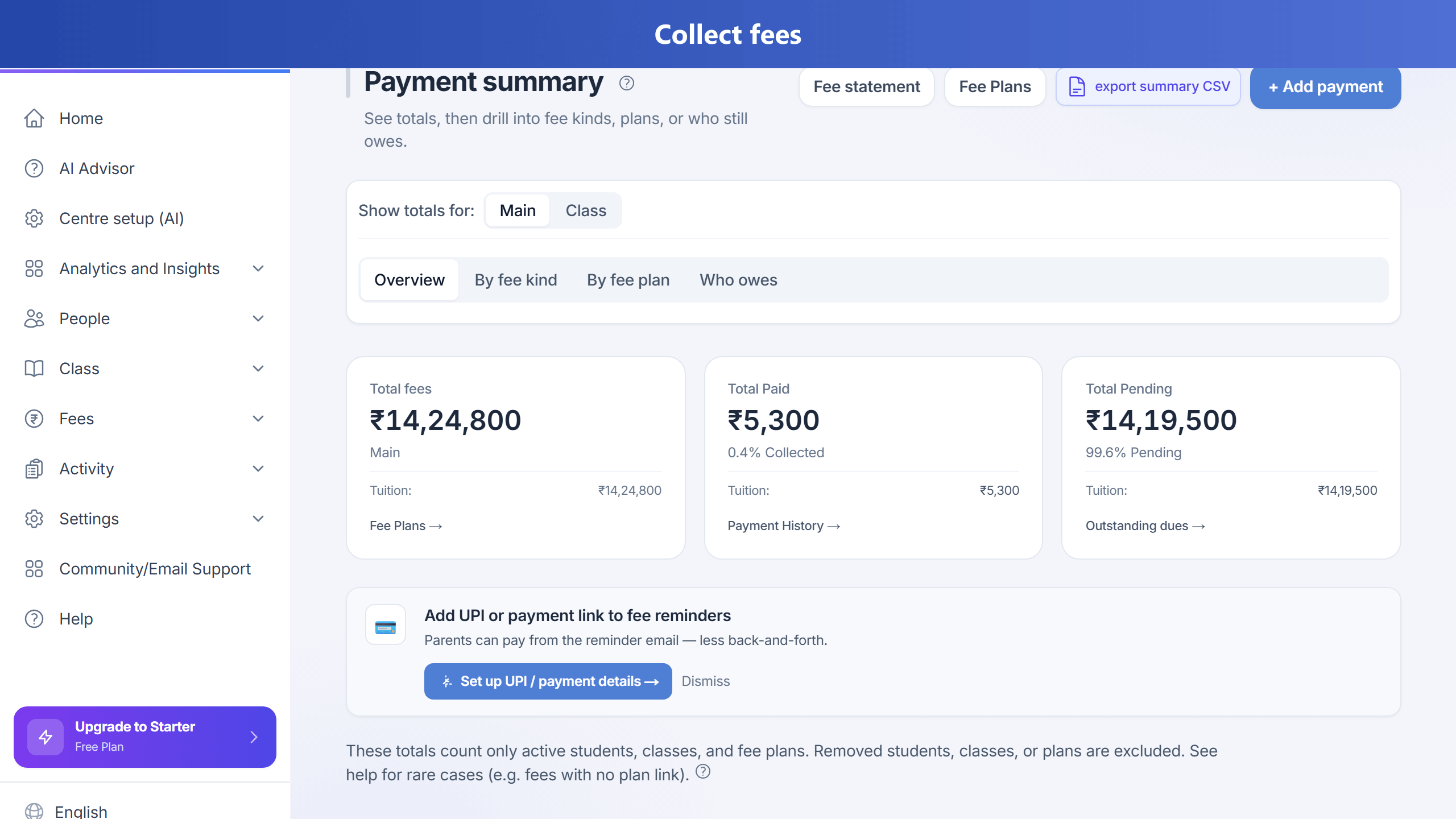
Steps
- Open Fees and go to outstanding dues view.
- Filter by batch or branch if needed.
- Use pending and overdue labels for daily follow-up.
- Record payments and send receipts immediately.
Row actions and bulk reminders
Use Add payment at the top of the page to record a payment. Each row has Pay (same flow), View fee lines, and Send reminder when your plan includes fee alerts. Tick Bulk remind for one or more students; a Bulk reminders bar appears with a button to email them together. Bulk remind stays unavailable if fee alerts are turned off for your organization in admin plan settings.
Partial payments and pending balance
Each fee line stores how much has been paid toward that line and how much is still due. Outstanding lists, dashboards, and parent digests use the remaining balance, not the full instalment amount, after a partial payment—so “pending” matches what parents actually owe.
Rebalancing future instalments (fee plan)
On a fee plan, you can enable rebalance future instalments after each payment. When on, after each recorded or online payment, remaining balances on future due lines under that plan are split evenly so each open instalment shows the same balance due (older due dates are not rewritten).
Finance Summary and “Overdue”
On the Growth dashboard Finance Summary, Overdue counts unpaid fee lines whose due date is today or earlier (by calendar day in UTC), so manual or plan-created dues due today appear together with older pending lines. Fees with a due date from tomorrow onward are not counted as overdue yet.
Payment summary: totals by class and fee plan names
On Fees → Payment summary, use What to show to switch views: Fee types (tuition vs equipment and other charges), Fee plans (totals per plan), and Who still owes (pending by class or student). Each class row includes fees posted on that class and instalments from per-student fee plans for students in the class, so class totals and plan labels stay consistent.
See also: partial payments and equal split on remaining months (steps for ₹20k due / ₹10k paid style questions and Ask AI), and the Fee and billing scenario playbook (master coverage list).