All help guides · Operations
Retention, score proof & invest-here reports
These loops turn displays into outcomes: keep students you messaged, prove learning to parents, and put teachers where fees clear. Blog deep-dive: Retention, score proof & where to invest.
Intervene → Saved (retention)
- Enable score projections on your plan (Growth+ by default; TuitionDesk admin can toggle per plan).
- Open Reports. At-risk students appear first on the examination projections panel.
- Click Intervene — logs a practice note, messages the parent, and creates a retention intervention.
- Later mark Saved, Improved, or Left so you know who you kept, not only who you messaged.
Also see Projected examination score.
Score proof (first → latest)
On a student’s Performance tab (staff) and the parent portal Performance section, TuitionDesk shows a first → latest graded test line when enough tests exist (for example 62% → 78%). Parent digests can include that line in a short narrative with attendance, focus topic, and fee CTA.
Exact skills to practice
When assessments use tagged questions, Performance lists skill miss rates (for example “Fractions: missed 4/5”). Use that for the next practice plan and PTM talking points.
Invest-here reports
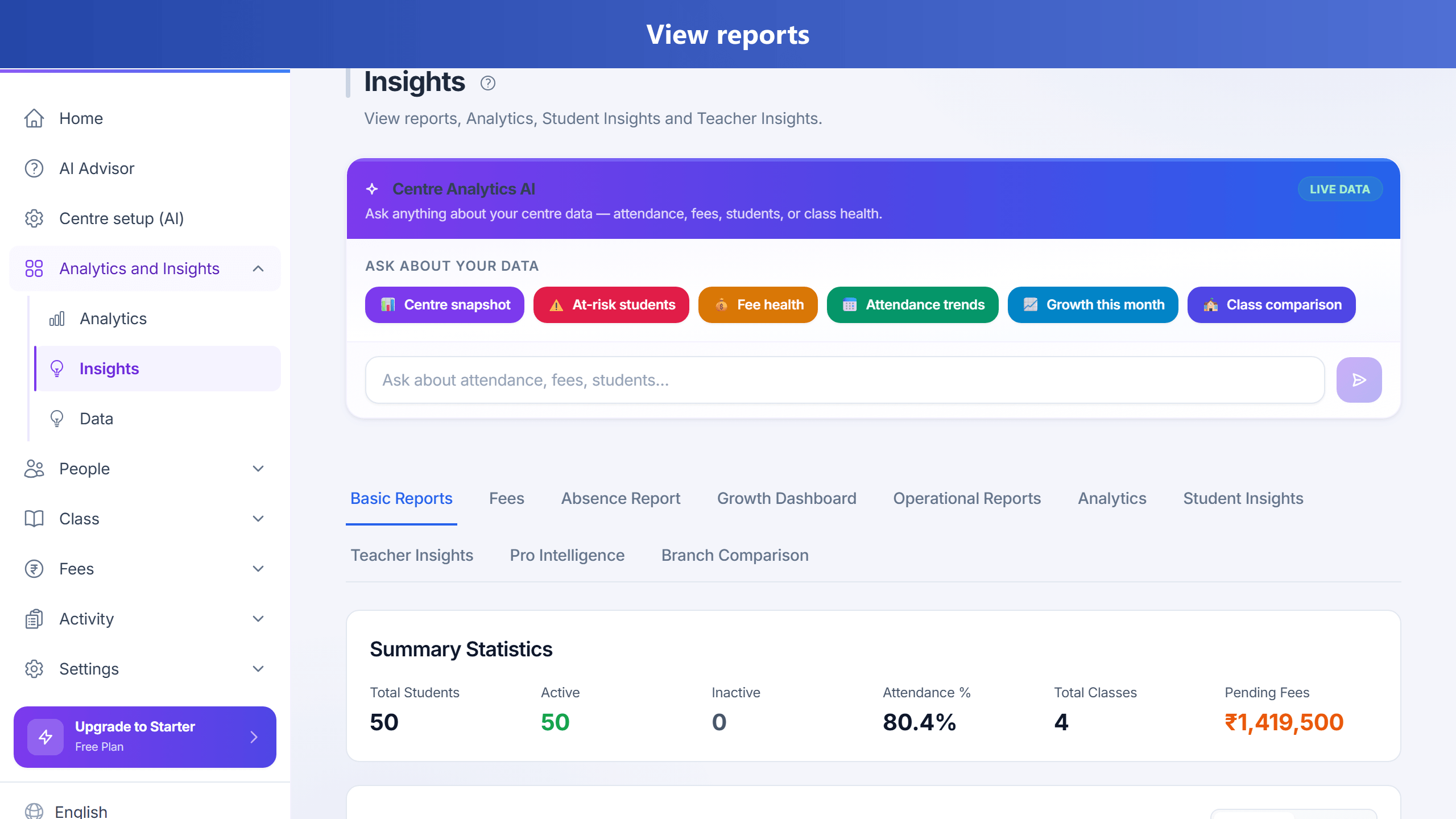
- Revenue by course and revenue by grade — Reports → Basic (all plans).
- Lead conversion by demo teacher — Reports → Enquiry (enquiry management on).
- Hours tutoring vs pass rate and teacher improvement / suggested bonus — Reports → Analytics (advanced analytics / Pro+).
- Confirm bonus on Teacher salaries — suggestion is optional; you still enter the amount.
More: Reports and insights.
Parent digest narrative
On Growth+ (parent digest feature), open the student → Parent digest → Load preview. The preview can show a narrative with score proof and focus topic before you send email/WhatsApp.
Plan gates (admin)
Platform admins enable features per plan (score projections, progress trends, parent digest, advanced analytics, enquiry management). Centres see the matching Reports tabs and Performance sections. Help AI will say if a feature is off for your plan and still explain the steps.
Owner who also teaches
Solo centres: create a Teacher with the same email, assign your classes, and use Continue as / Switch account for the teacher view. Org-wide fees and reports stay on the owner login.