How to Record a Tuition Fee Payment
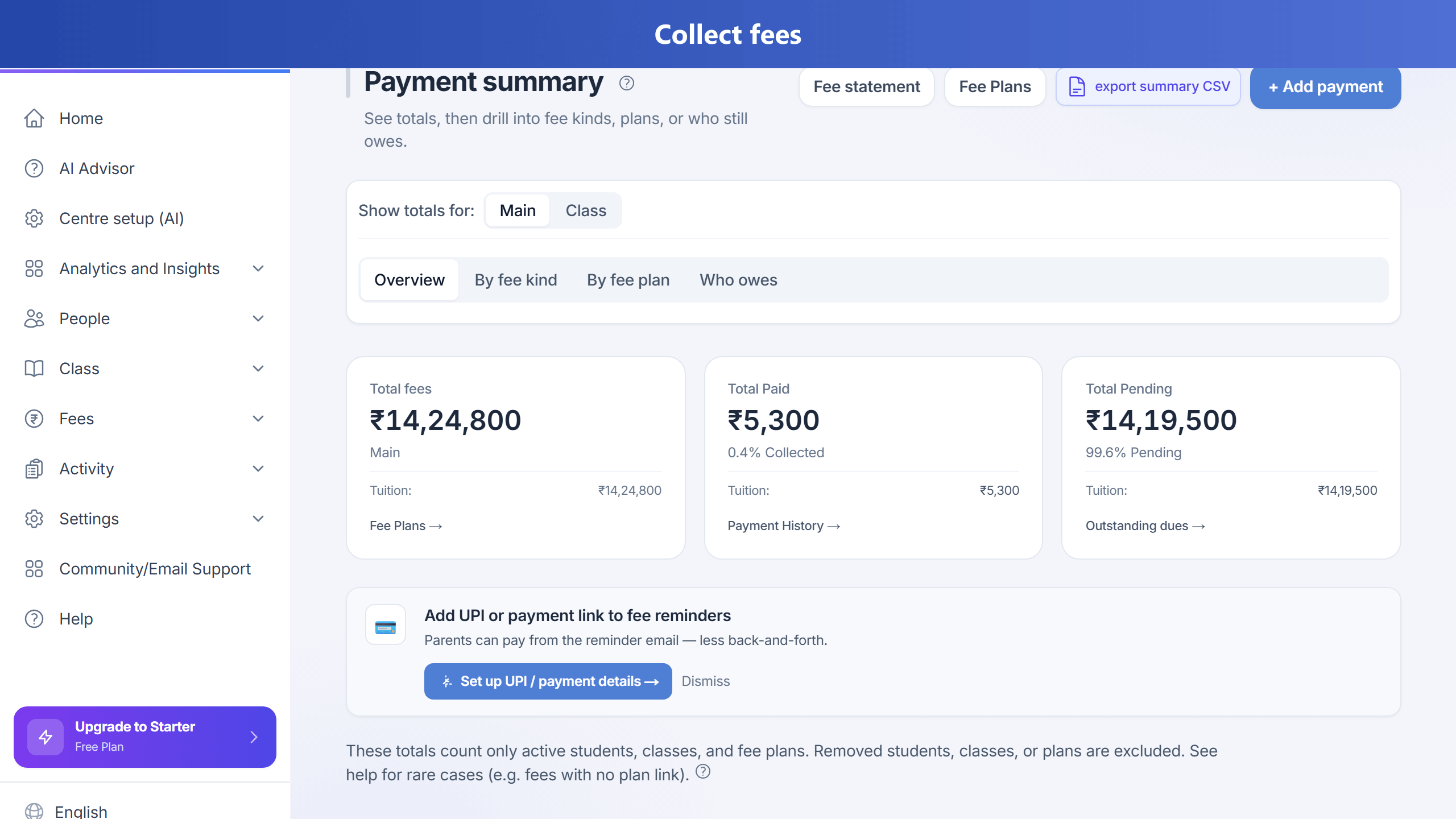
Every rupee should leave a trail. Recording payments in TuitionDesk updates the ledger, receipts, and outstanding list — so parents stop saying “I already paid.”
Record a payment
- Go to Fees → choose the student (or use Record payment from Fees / class shortcuts).
- Choose the payment period when more than one due is open. Monthly plans show month/year (e.g. August 2026). Every 4 weeks and other week cadences show the due date plus the cadence (e.g. Aug 7, 2026 · every 4 weeks)—not “N/A”.
- Enter the amount, date, and payment mode (cash / UPI / bank / online).
- Tap Review. The review screen shows amount, method, period, and how outstanding will change after recording. Nothing is saved yet.
- Tap Submit payment to record. Outstanding balance updates; download or share the receipt.
Partial payments
Parents can pay part of a month. TuitionDesk keeps the remaining balance visible — see also flexible payment and partial / rebalance scenarios.
You can still View / Download / Email a PDF receipt for a partial payment from Payment history. The receipt shows amount received, still due on this line, and the student’s total outstanding.
Follow up
Use Outstanding dues to send reminders for who still owes.
Start collecting with receipts today.
Get Started Free →
Get Started Free →