TuitionDesk Home Dashboard — What Owners See Daily
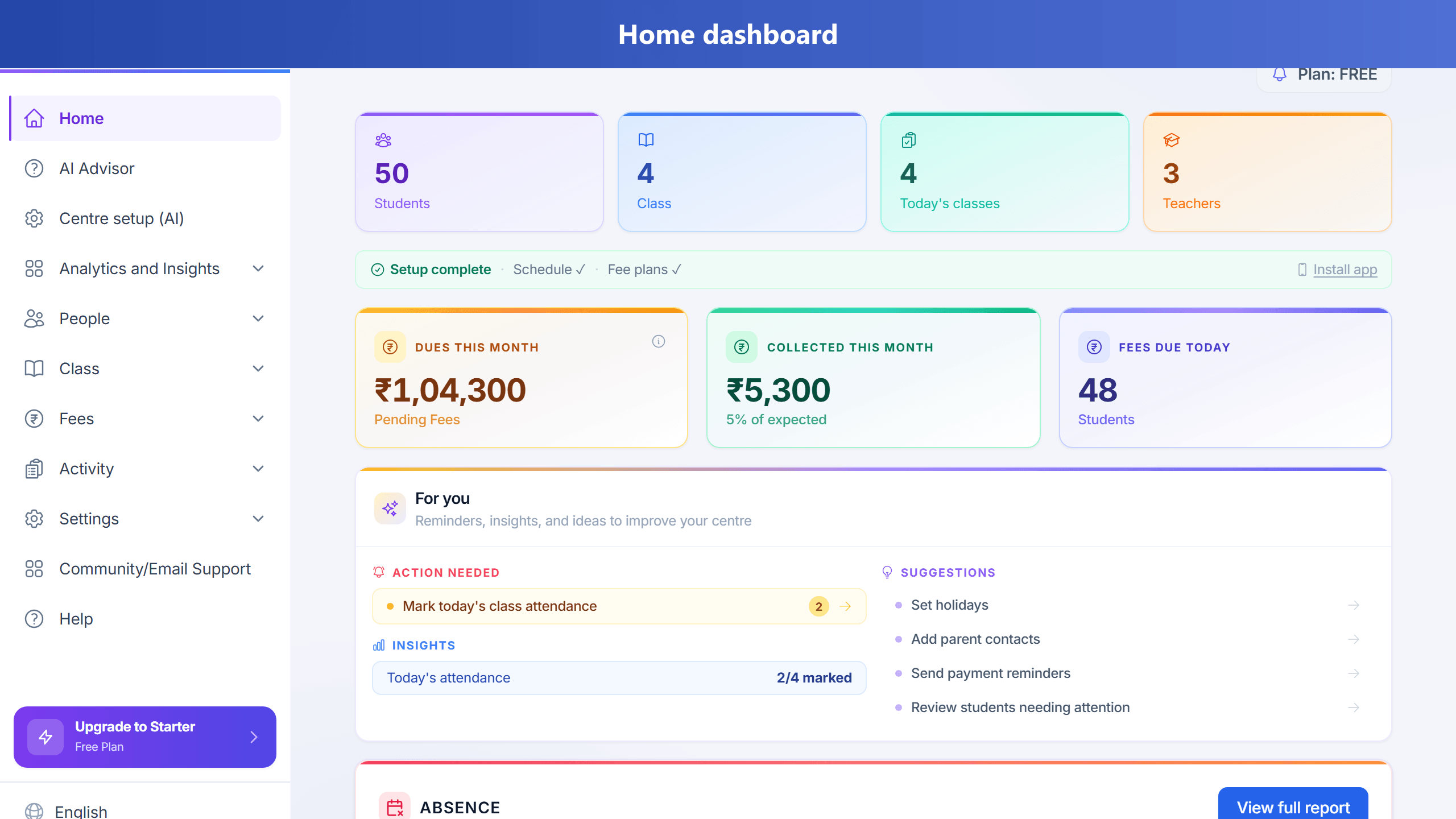
Home is your Monday morning board. Open it after login to see what needs action — not another blank spreadsheet.
New centre — guided setup on Home
Until core setup is complete, Home shows one step at a time (not a long form). The intro is honest about that checklist — it does not claim AI will finish setup for you. If your plan includes aiSetupWizard, Home also offers a link to Class & fee setup (AI) for drafting classes (with subject, capacity, times, and fee plan) from a short description — preview stays locked until those details are answered. Order:
- Add a student
- Add a teacher (optional — solo owners can skip and teach as owner)
- Create a class
- Assign students & teacher
- Set class timing
- Set up fee collection
On phone and desktop, a compact single-line Setup X/7 · … banner stays at the top of every page (like the demo-data bar) with Continue → until those milestones are done. Teachers do not see this banner — enrolment and fee setup are owner / branch-admin work; teachers use Home for today’s classes and attendance. Do not stop after adding only a student — use that button or return to Home for the next card. Creating a class from setup ends with Done — continue to next step →.
What you’ll typically see
- Today’s classes — sessions and whether attendance is marked.
- Absence — who was absent; jump into Attendance to follow up.
- Outstanding / for you — fee and ops nudges (plan-dependent AI insights may appear).
- Recent activity — latest payments and changes.
On phone
The same dashboard works in the browser and Android app. Bottom navigation keeps Fees, Sessions, and More one tap away.