How to Add and Manage Students in TuitionDesk
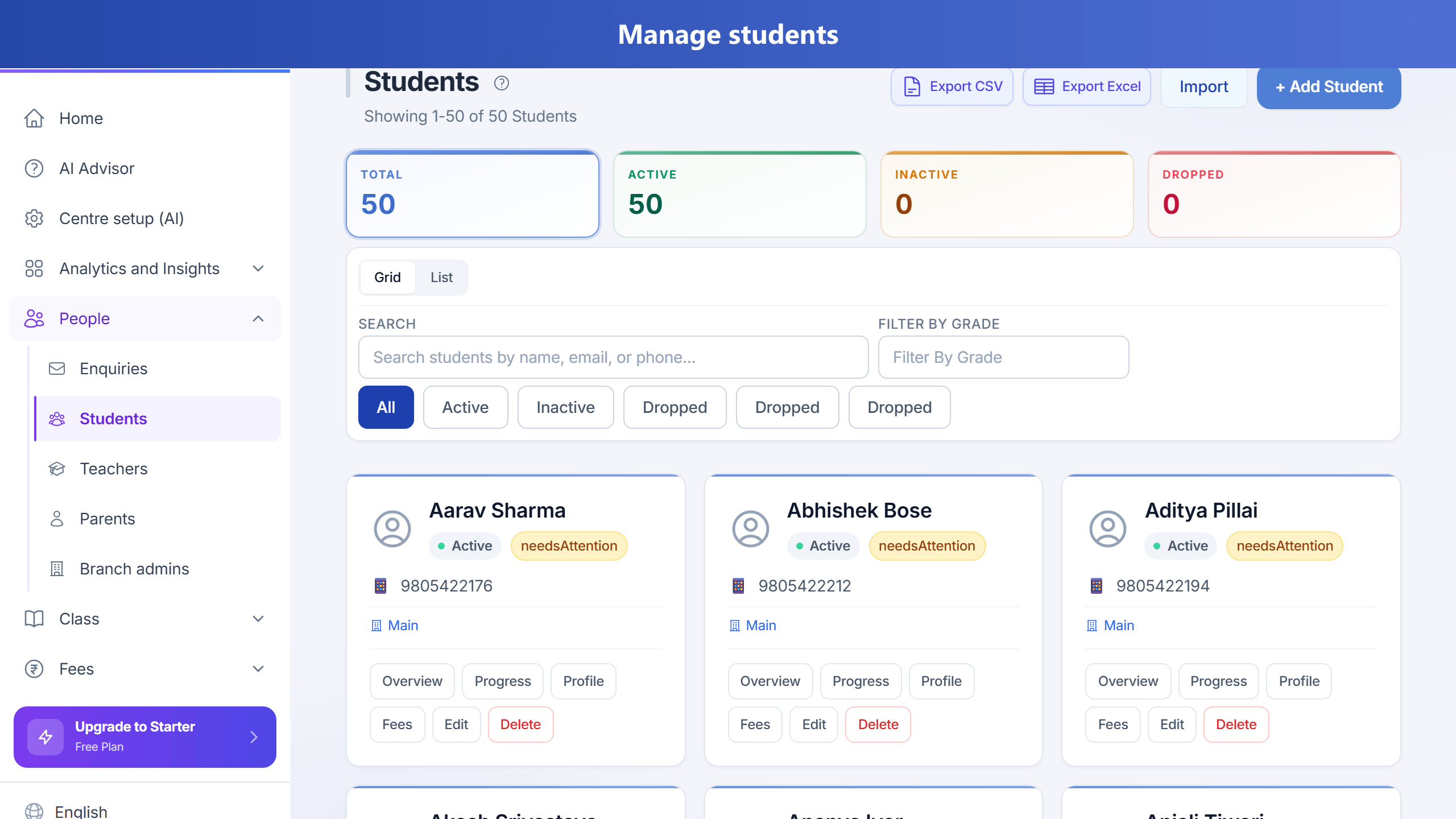
Students are the core of your centre. Add them once, then assign classes, mark attendance, and track fees from the same record.
Add a student
- On a computer open People → Students in the left sidebar. On a phone tap Students on the bottom bar.
- Click Add Student.
- Complete the steps: Basic (name, grade, status), Contact (phone, email, parent), Profile (student ID, date of birth, address), and Emergency contacts.
- Click Save. Everything you enter is stored on the student record — open the name to see Overview and Profile tabs with the same details.
Import many students
- On Students, click Import.
- Download the sample template and fill name, phone, email, etc.
- Upload, map columns if needed, preview, then Import. Free plan can hold up to 10 students total.
Tips
- Keep one parent email per person so portal sign-in matches the right children.
- Export CSV/Excel anytime for backup using the toolbar icons.
Try it free — up to 10 students, no credit card.
Get Started Free →
Get Started Free →