Class session notes (PDF)
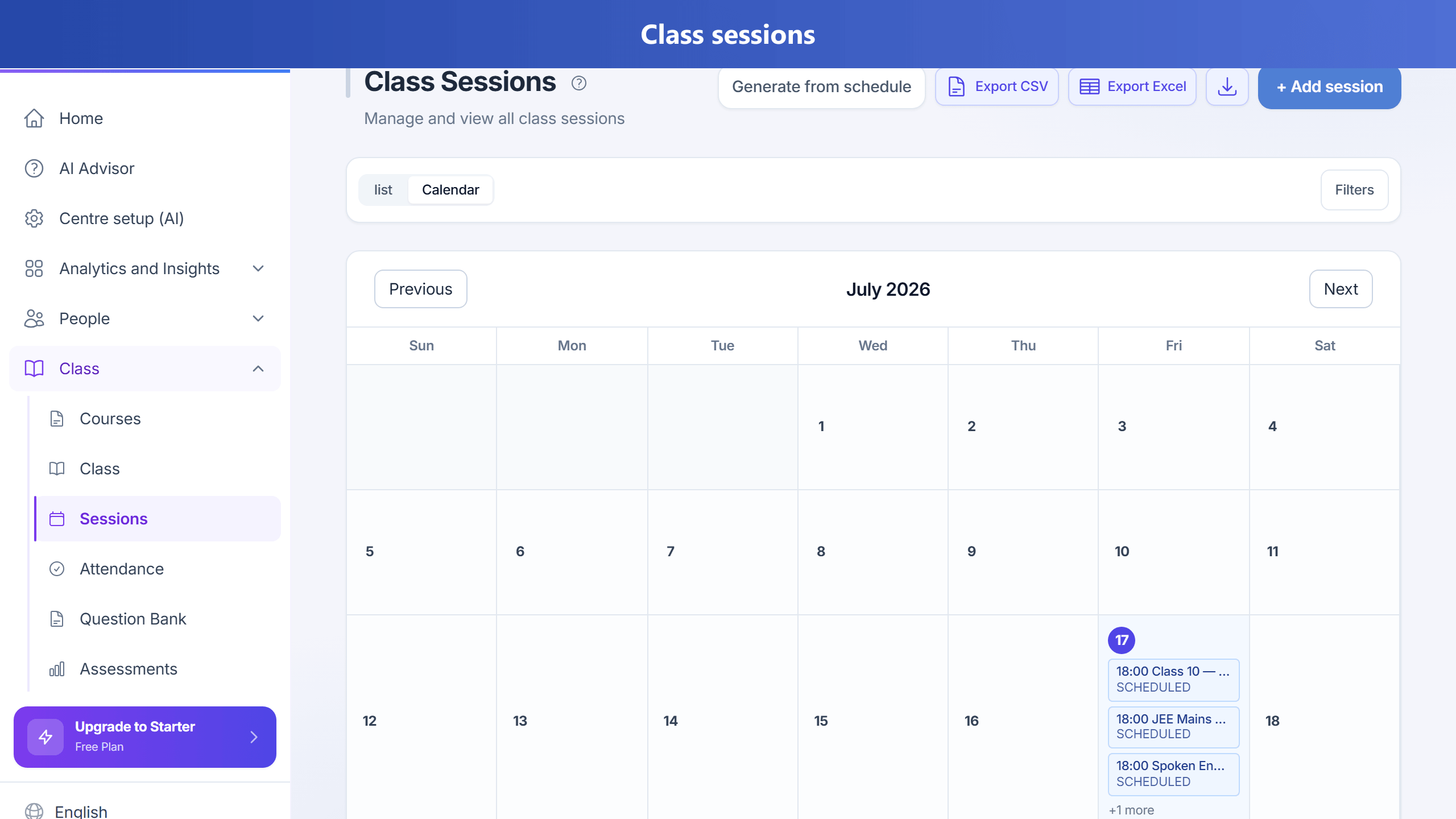
Class session notes let you build one PDF per class session from uploaded images and/or PDF pages.
Your subscription must include the plan feature sessionNotes (admins enable it per plan in
Admin → Plan configuration). Smart extras (search, ZIP download, versioning, auto-PDF after one file) use
sessionNotesSmart when enabled for your plan.
Where to open
The session notes workspace (upload and complete PDFs for one session) is not a separate top-level menu item: open Sessions, then use Notes on the session row or from the calendar day view. When sessionNotesSmart is enabled for your plan, Notes library appears under Activity in the sidebar (next to Documents) and in the mobile More menu so you can search and download completed notes across sessions.
For a specific session, go to Sessions (same page for owners and teachers):
- List view: In each row, under Actions, use Notes (next to Calendar).
- Calendar view: Tap a date to open the day detail sheet (neutral white header with a mild blue accent strip), then use Notes next to Calendar for that session.
Workflow
- Open Notes for the session — you land on the session notes page with that session selected.
- Upload draft files (images or PDFs). You can select multiple files at once in the file picker (on desktop: Ctrl+click or Shift+click). There is a per-session limit on draft files.
- Add an optional title.
- Optionally tag the notes with a Subject and Topic from your curriculum (topics depend on the subject). If the batch has a default subject, it may be prefilled.
- Complete to merge into a single stored PDF and download when ready.
Session notes library (smart)
When sessionNotesSmart is on, open Notes library from Activity (sidebar or mobile More menu) to search completed notes by batch, subject, topic, and date, and to
download all matching PDFs as a ZIP (useful for emailing a batch of class notes to parents). Teachers and branch admins only see their scope; owners see the whole organization.
Versioning and re-upload
After notes are completed, you can reopen for a new upload: either keep the current PDF as a prior version or replace it. Then upload and complete again as usual. Optional auto-generate PDF after a single upload completes immediately when you upload one PDF or one image (multi-image sets still use Complete session).
Opening and downloading PDFs (CloudFront)
Final PDFs are stored in your centre's cloud storage and opened via time-limited signed links.
In the app, Open PDF requests a fresh link from the server when you click, so you should not see
"Access Denied" from an expired link. Parent email and WhatsApp messages use a longer-lived link so recipients can open the file later.
Administrators can tune link duration via environment settings (SESSION_NOTES_URL_EXPIRY_SECONDS,
SESSION_NOTES_NOTIFY_LINK_EXPIRY_SECONDS) where applicable.
For automation or API clients, GET /api/class-sessions/{session_id}/notes/pdf-url returns JSON with a url field;
GET .../notes/pdf returns an HTTP redirect to a fresh signed URL when called with a valid Authorization: Bearer token
(e.g. curl -L -H "Authorization: Bearer …").
Parents / notifications
Nothing is sent automatically when you upload or complete. If your plan includes parent notifications for session notes, use Resend notes on the session notes page after the PDF is ready. You can choose email and/or WhatsApp (WhatsApp also depends on your plan and centre settings). Teachers can send notifications for sessions in their batches only.
After you Complete class on Sessions, TuitionDesk prompts you to open session notes. Short class remarks saved on complete also feed the parent digest (student profile → Parent digest) so parents see a recent class snippet without a separate copy-paste.
Parents and students do not need a TuitionDesk login to view the PDF: the email or WhatsApp message includes a direct HTTPS link to the file (a signed URL that expires after a configurable period). They open it in a normal browser.
Session notes PDFs are separate from the short text notes field on a session (schedule or admin notes) and from the optional topic / focus field on the session row in the Sessions list.
Help AI
After your administrator syncs help documentation, Ask AI on the Help page can answer questions about class session notes using the official articles.
Compare TuitionDesk: Why TuitionDesk · vs Fedena · vs Proctur · Best coaching software (India)