Android mobile app
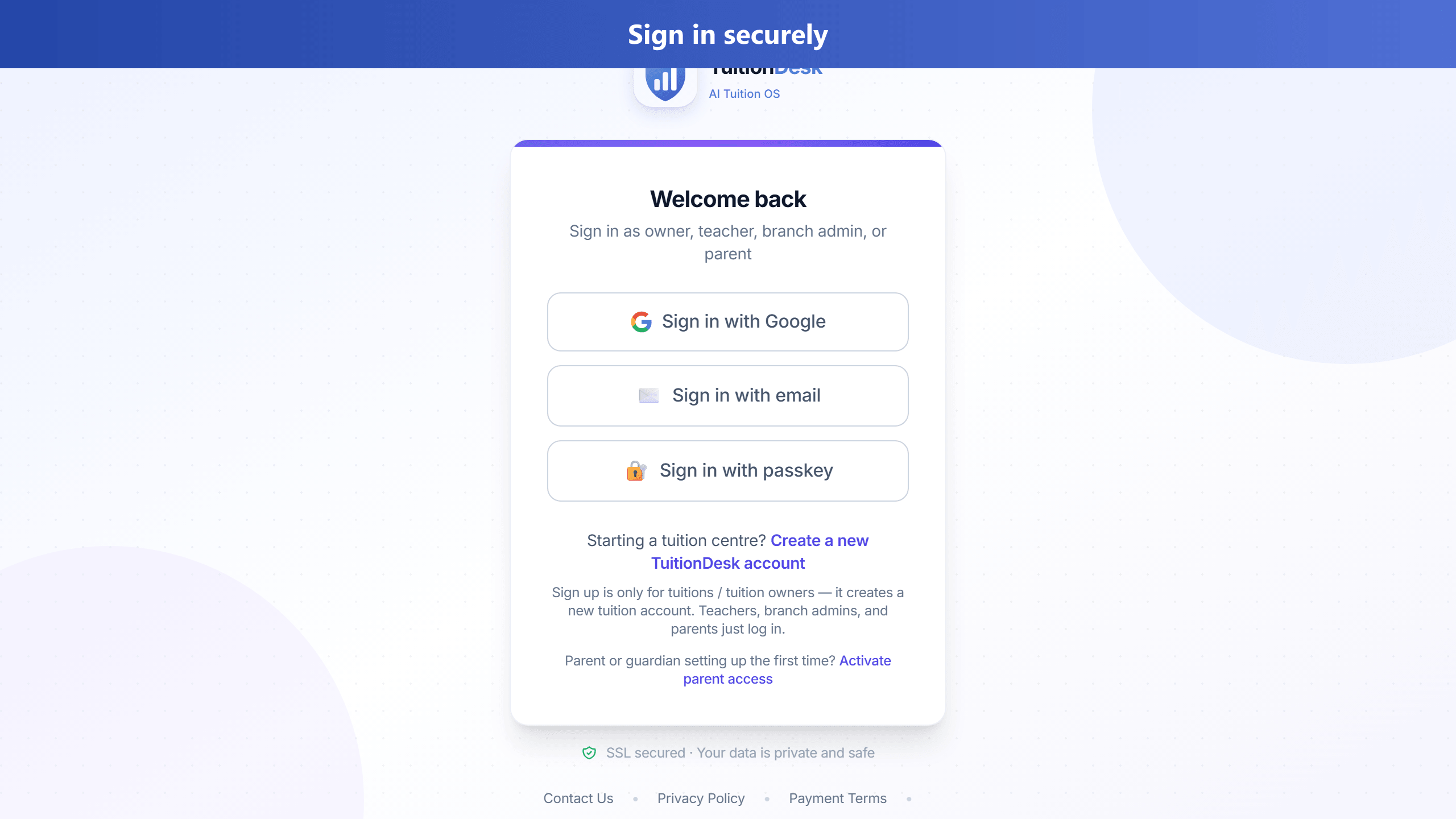
TuitionDesk publishes one Android app named TuitionDesk
(package in.tuitiondesk.app). Owners, branch managers, teachers, and parents install the same app
and sign in at the unified login screen.
Who signs in how
| Role | Can they self-register? | How they start |
|---|---|---|
| Tuition owner / director | Yes — public Sign up creates a new tuition account | Sign up, then create your centre. Login at /login/ |
| Branch manager / manager | No — invite activation only | Accept owner invite, then log in on the same screen |
| Teacher | No — login only | Owner creates your account and can reset your password any time |
| Parent / guardian | No signup for a new centre — activate parent access once | Centre adds your email; you activate a password, then log in at /login/ |
Connection and offline
The app talks to TuitionDesk over the internet. If your phone loses signal, a compact You're offline strip appears and explains that we will reconnect automatically when you are back online. While offline, form saves and other writes wait until you reconnect (they do not silently fail mid-save).
Brief connection blips (for example while the API is updating) are retried automatically for reads and safe updates. If a write still cannot reach the server, you see a friendly We're reconnecting or temporary issue message with Retry — never a raw "Network Error" or "Internal Server Error". If your session has expired, login says Your session has expired instead of "Unauthorized". During planned updates you may see We're updating TuitionDesk with a Retry Now button and automatic retry every few seconds.
Native phone feel
- Bottom tabs vibrate lightly when you switch screens; the tab bar hides while the keyboard is open so it does not cover form fields.
- Pull down on Home, Students, Fees, and other main lists to refresh data.
- Share / download PDFs — fee receipts, invoices, and ID cards open the Android share sheet (Save to Files / Drive / WhatsApp). Browser-style “download” links do not work inside the app WebView.
- Share quiz links, referral links, and your marketing site using the Android share sheet.
- Camera / Gallery buttons appear on photo uploads (for example profile photos) instead of only the file picker.
- Device reminders can ping you for a nearby fee due date or the next class (once per day, on-device — separate from email/WhatsApp reminders).
Multiple roles, one email
If the same email matches more than one role (owner, branch manager, teacher, or parent)— in the same centre or across centres—TuitionDesk shows a Continue as chooser with every matching account. Google sign-in lists parent contacts even before a parent password is set. With a single match, you go straight into the right portal.
First-time centre owners can use Sign in with Google on the login screen — TuitionDesk creates your owner account and a starter academy automatically (simple one-class mode). On later Google sign-ins, you always resume the same academy (students, teachers, and classes stay put). If your email is also used as a teacher or parent contact, Google sign-in still opens your owner academy first; use Switch account to open the teacher or parent role. Teachers, branch managers, and parents who are not owners still need an account created by their centre.
After you sign in, open your profile menu (or Accounts in the parent portal) and use Switch account to move between any linked roles without signing out.
A teacher or parent may also belong to more than one centre at the same time. Each centre appears as its own Continue as / Switch account option. Student records remain private and separate inside each centre.
Owners on Growth and above (or any plan where admin enables multipleOrganizations) can create another academy under the same login, then switch between academies from the same Switch account menu without signing out. Each academy keeps its own students, fees, teachers, and subscription.
Early access (closed testing)
While the app is not yet live on the public Play Store, you can join closed testing. From your TuitionDesk dashboard, open Support and create a ticket (or use Request Android early access). We add the email on your account to the Play Console early-access testers list. After you accept the invite, you can install the official Android app, receive push notifications, and use day-to-day features. Public Play Store launch is coming soon.
Super-admins can announce closed testing (or any product update) from Admin → Broadcast email: compose subject and body, optional button link, send a test email to any address first, add extra non-account emails, then blast verified owners or all accounts.
Play Store publishing
Publish one listing: TuitionDesk (in.tuitiondesk.app).
Typical path: internal testing → closed testing → production. Build a signed .aab in Android Studio
after npm run android:build.
Version gate (Android vs iOS)
SuperAdmin App Version Gate has two independent sets of numbers: Android (Play Store) and iOS (App Store). Releases are not the same build — do not copy the Play Store minimum onto iPhone. Until iOS versions and an App Store URL are saved, iPhone is not force-blocked. Update Now on each OS opens that OS's store only.
App icon
Official mark: white shield on blue (same as the website favicon), not a blue shield on a white tile.
Regenerate with npm run android:icons and npm run ios:icons in the frontend folder, then rebuild.
Push notifications use a white status-bar silhouette (ic_stat_notification) tinted with the same mild blue.
The large coloured square in the notification shade usually comes from the installed launcher icon —
update to the latest APK if you still see an older mark.
Typography
Product UI (web and Android app) uses Rubik — Classic & Sophisticated:
headings Bold (700), body and captions Regular (400), labels Medium (500).
The Android app loads the same fonts from the web build; rebuild the app after font changes
(npm run android:build).
Forms and bottom buttons
On phone and the Android app, Cancel / Next / Save stay above the soft keyboard on every page: slide-in forms shrink with the keyboard, page scroll leaves room for action buttons, and the bottom tab bar tucks away while you type. Update to the latest app build if buttons still appear hidden.
Homework pushes
When your centre assigns batch homework, parents can receive push notifications for: new homework assigned, due tomorrow (evening), due today (morning), and overdue. Tapping the notification opens the child's Homework tab in the Family Portal.
Class and report pushes
Teachers and parents also get pushes (alongside email where configured) for: schedule added/updated/cancelled, teacher assigned to a class, student enrolled, batch start date, progress report sent to parent, and session notes PDF shared with parents. Tapping opens Sessions (or Attendance for progress reports) for the right child or class.
Owners can receive onboarding reminders (finish adding students/classes) and purchase confirmed pushes that open Students or Pricing in the app.
Sign out
Use More → Sign out (or Settings → Sign out). The app clears your session and returns to the login screen right away. Push-notification cleanup runs in the background and must not leave the app stuck on a loading screen.
Fingerprint login
If your device supports fingerprint or Face ID, TuitionDesk can prompt you to enable Fingerprint login after sign-in. This is available even if you do not have access to the full Settings page.
Push notification timing
After you allow notifications, TuitionDesk schedules pushes using the recipient's effective timezone:
your personal timezone override when set, otherwise your centre's timezone
(default Asia/Kolkata in Settings), not the server's UTC clock alone.
- Class reminder — about 30 minutes before the session’s start time (not midnight).
- Attendance nudge — after the session’s end time if attendance is still unmarked.
- Owner digests — fee summary, enquiry follow-ups, and end-of-day attendance gaps fire at local morning/evening hours for your centre.
- Owner subscription renewal — email and push reminders are sent 7, 3, and 1 day before the monthly renewal, on renewal day, and after expiry if it remains unpaid.
- Fee coming soon / overdue — email/WhatsApp/push around local 9 AM and 10 AM on the relevant due dates.
Opening a notification
Tap a TuitionDesk notification to open the relevant page in the app. Fee reminders open the child’s Fees tab for parents or Outstanding fees for staff; class and schedule updates open Sessions; attendance alerts open Attendance; progress reports open Attendance for the child; test reminders open the child’s Tests/Assessments tab; enquiry reminders open Enquiries; purchase and renewal reminders open Pricing; onboarding reminders open Students. When the notification includes a child, batch, session, or date, TuitionDesk carries that context into the page where possible.
Every notification is tied to its intended role. If you use the same email as an owner, teacher, or
parent and a different role is currently active, TuitionDesk returns to the unified
/login/ flow. Choose the requested identity at Continue as; the app then
resumes the original notification page. This prevents a parent notification from opening staff data,
or the reverse.